Jupyter on remote Linux server
Jupyter is an online service that all interactive computing using different programming languages across multiple users.
Jupyter Notebook
JupyterNotebook
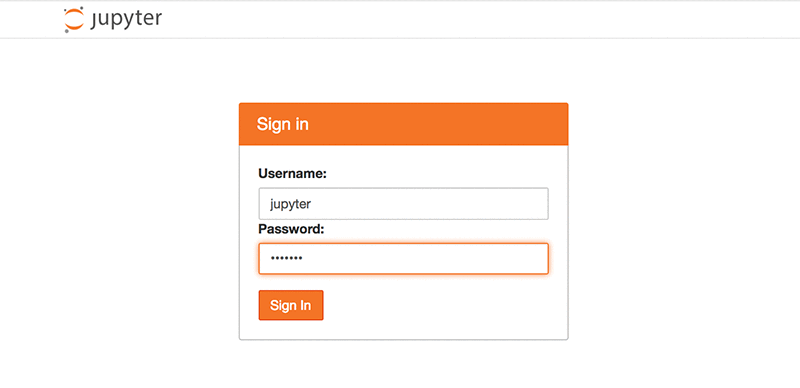
- Accessibility & Security
- access anywhere with internect connection
- username/password protect and secure files remotely password protect
- configure network, authtication, etc. config
- Work Efficiency
- file transformation, share and edit
- work as individuals / groups
- multiple programming languages Python, R, Julia etc.
- easy coding and running in cells
- version controls with checkpoints
- visulization and interaction functiongs with Lab Jupyterlab
- customization and preference setting
- good for demo /
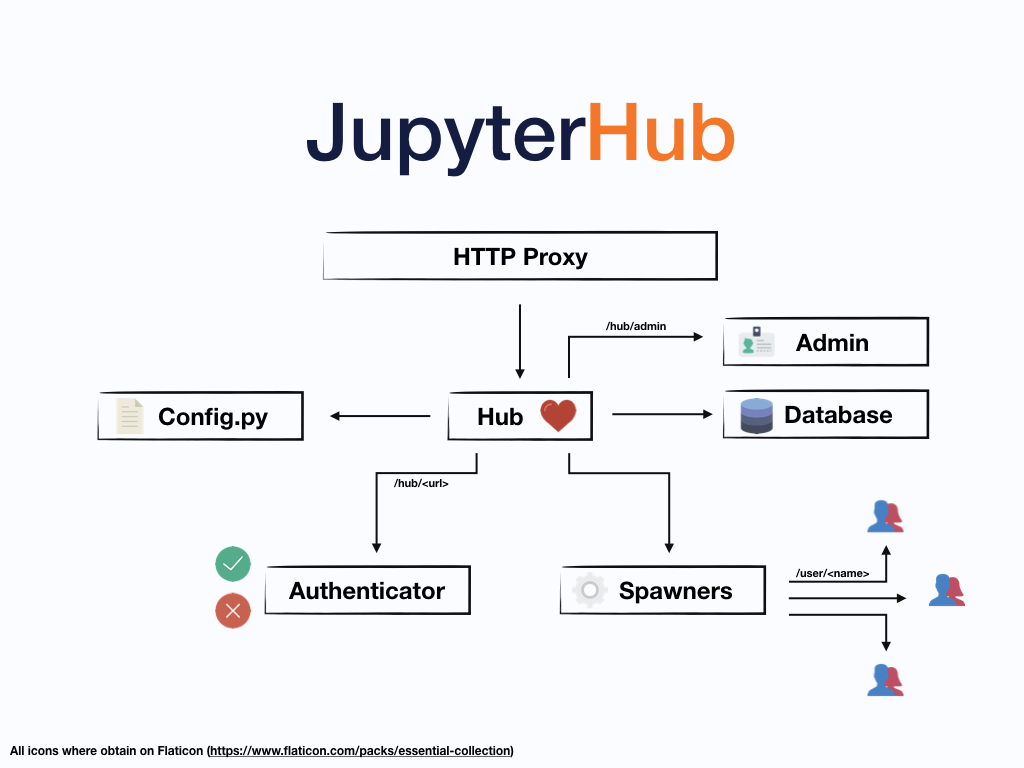
JupyterHub

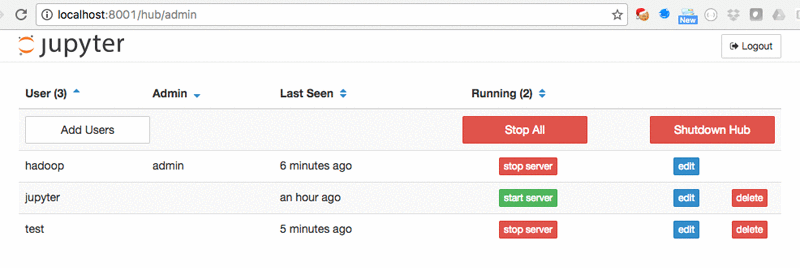
- admin and general user previledge
- username folder / project fold file name
- create/ban users generation (without neet to create system users)
- users with third party and connection to github, sql, tableau etc.
- customization
- authentification and ssh
- run in the background though Linux server log out
Python 3 testing case: Web-automation for data scraping:
- easy to run and user frinedly
- really convenient and can work on big data
- efficent and customization «««< HEAD
- [data stored] (http://localhost:8888/tree/Documents/demodata)
- ask about dataquality
-
data model using python
- data stored
- my code:
Jupyterlab customized interface

- with R, Python3, SQL, Java and Matlab
- Graph function, Google Drive connection, Git, Markdown and Latex, Python Script Writing, etc.
- See more at my post: Jupyter Lab Customization with Python, C++, R, Matlab Environments and SQL, Diagram, Markdown interface.
#!pip install selenium
import time
import csv
import datetime
import argparse
import os
import numpy
#!pip install selenium
from selenium import webdriver
import pandas as pd;
output_final_final=pd.DataFrame()

# modules neccesary for web-automation.
options = webdriver.ChromeOptions()
options.add_argument('--ignore-certificate-errors')
options.add_argument("--test-type")
## path where you store your chromedriver
driver = webdriver.Chrome()  # Optional argument, if not specified will search path.
## website you would like to complte auto scrape
## Link to download the webdriver -- chrome : https://chromedriver.storage.googleapis.com/index.html?path=75.0.3770.90/
## You may modify the webdriver or omit it depends on the system  and (or) the browser.


# Interaction with user for text entering and searching section
driver.get('https://www.bop.gov/inmateloc/')
driver.find_element_by_xpath('//*[@id="ui-id-1"]/span').click()
## text entering on wesbite for searching
text_area_first = driver.find_element_by_id('inmNameFirst');
print('Enter First Name for Search:')
first_name = input()
text_area_first.send_keys(first_name)
print('\n First Name Collected, then Please Enter the Last Name: ')
last_name = input()
text_area_last=driver.find_element_by_id('inmNameLast')
text_area_last.send_keys(last_name)
print('\n Please Enter the Age if if known, heat \'Enter\' to skip: ')
Age = input()
text_area_age=driver.find_element_by_id('inmAge')
text_area_age.send_keys(Age)
print('\n Enter the ID if it known, heat \'Enter\' if not sure: ')
ID = input()
text_area_mid=driver.find_element_by_id('inmNameMid')
text_area_mid.send_keys(ID)


# Automation and Scraping section
print ('\n\n Is this correct information you would like to search?')
print ('\n            <',first_name,last_name,Age,ID,'>          \n')
print ('Please enter yes/no: \n')
start_check = input()
if start_check == 'yes':
    time.sleep(2)
    driver.find_element_by_xpath('//*[@id="searchNameButton"]').click()
    print('Start searching for the information in database, please wait ...')
    item = driver.find_element_by_xpath('//*[@id="inmateTable"]')
    driver.execute_script("arguments[0].click();", item)
    time.sleep(3)
    for table in driver.find_elements_by_xpath('//*[@id="inmateTable"]/tbody'):
        data = [item.text for item in table.find_elements_by_xpath(".//*[self::td or self::th]")]
    time.sleep(2)
    driver.quit() # automatically close the website.
    if len(data)<8:
        print ("\n No information found, do you want to try one more time?")
        print('\n Pleaese enter Y/N for your answer: ')
        re_run = input()
        print('Re-run the cell manually for this time: ')
    else:
        print("\n Data Scraping Successful, please run next cell.")
else:
    driver.refresh()
    print('Enter again: \n')
    print('First Name:')
    first_name = input()
    print('\n Last Name: ')
    last_name = input()
    driver.find_element_by_xpath('//*[@id="searchNameButton"]').click()
    print('Start searching for the information in database, please wait ...')
    item = driver.find_element_by_xpath('//*[@id="inmateTable"]')
    driver.execute_script("arguments[0].click();", item)
    for table in driver.find_elements_by_xpath('//*[@id="inmateTable"]/tbody'):
        data = [item.text for item in table.find_elements_by_xpath(".//*[self::td or self::th]")]
    time.sleep(2)
    driver.quit()
    if len(data)<8:
        print ("\n No information found, do you want to try one more time?")
        print('\n Pleaese enter Y/N for your answer: ')
        re_run = input()
        print('Re-run the cell manually for this time: ')
    else:
        print("\n Data Scraping Successful, please run next cell.")


#Data Preprocessing and storage
n=7
final = [data[i * n:(i + 1) * n] for i in range((len(data) + n - 1) // n )]
output_final=pd.DataFrame(final)
output_final.columns=['Name','Register Number','Age','Race','Gender','Release Date','Status']
print(output_final.head(3))
time.sleep(2)
print('\nData Cleansing Successful.')
## save to the path you would choose.
export1_csv =output_final.to_csv ('extracted_data.csv', index = None, header=True)
print("Cleaned Data Saved.")
edited by Jiashu Miao :) 09/20/2019 last edited by Jiashu Miao 10/13/2019